Portfolio Website for Designers and Developers: 6 Things to Look For, With Picks on Framer, Astro and Next.js
Compare Prisma on Framer, Astro and Next.js by page layout, project editing and launch workflow. Six checks help you choose a portfolio you can keep current.
- Portfolio
- Templates
- Framer
- Astro
- Next.js
- Figma

Choose a portfolio website template that gives each project its own page, makes new work easy to add, loads comfortably on a phone and gives visitors a clear way to contact you. Check that its About page has room for your role and experience. For a personal portfolio, pick Prisma on Framer if you want to edit visually, Astro if you write in Markdown and want a static site, or Next.js if you already work in React and want to extend the site in that stack.
Six checks to make in the live preview
1. Open a project and read it without looking at the pictures
A case study should still make sense with the images turned off. Look for a place near the top to explain the problem, your part in the work and what you delivered. The rest of the page should let you walk through a decision and show the evidence behind it.
For a design project, that might mean putting an early direction next to the final identity and explaining why you changed it. For a development project, show a running demo or link to the relevant repository, then explain a constraint you had to work around. If the template asks for an outcome and you have no measured results, use a verifiable deliverable or describe what shipped.
2. Find out how you would add the next project
Look for one project entry that supplies both the card on the work index and the detail page. Write down what you would need to add for your next project: title, cover, summary, category, your role and the story itself. If the same detail needs updating in several places, count that as work you will repeat.
Framer Prisma uses a CMS, an editor where you add and update entries. Both code editions use Markdown project files. All three list category filters. With only a few projects, check how the work index looks with a single category and a short, carefully chosen set of cards. Framer Prisma · Astro Prisma · Next.js Prisma
3. Test a case study on your phone
Open a project from a fresh tab on mobile data. Check when you can read the first paragraph, whether the gallery shifts as images arrive and whether the back link is easy to find. Repeat with your device's reduced-motion setting on. An animated demo and a fast finished site can coexist, but check again after inserting your own images, fonts and video. For a reproducible check, run PageSpeed Insights on both the home and project URLs.
4. Pick the editing workflow you'll use between jobs
Imagine you've just finished a project and have half an hour to post it. On Framer, your update is a CMS entry and a publish. In the Astro and Next.js editions, you edit a Markdown file in the project and redeploy. Then think through your first edit that changes the design itself, such as adding a repository link or replacing a full-bleed image with a video. That tells you more about the work ahead than the number of pages in the ZIP.
5. Trace the path from any project to your inbox
Start on a case study as if someone sent you the link. Can you get to Contact without going back to the home page? Put a direct email link alongside any form. For freelance work, asking about the project and timeframe is a reasonable first step. For job enquiries, an email and a résumé link can be enough. Once the site is yours, send yourself a test from the deployed URL and confirm it arrives.
6. Read the About page as a client or hiring manager
You should come away knowing what the person does, what part of the work they can own and how to get in touch. For collaborative projects, name your contribution plainly. If the template's default voice says “we” or leans on agency credentials, rewrite the home and About pages in the first person and replace the demo statistics and testimonials with evidence you can share.
Prisma on Framer, Astro and Next.js
| Edition | Project and journal editing | Pages you get | Best fit and where it takes work |
|---|---|---|---|
| Framer | Case studies and journal articles in Framer CMS | Home, About, Case Studies and its detail page, Blog and its article page, Contact, Privacy Policy and 404 | Best for visual editing and regular project updates. Pick a code edition if you want to maintain and deploy the source from your repository. |
| Astro | Markdown for projects and articles, typed files for page copy | Home, Projects and project details, About, Journal and article pages, Contact, Privacy Policy and 404 | Best for editing in Git and deploying static output. Choose Framer if opening a source file and redeploying would keep you from updating the site. |
| Next.js | Markdown for projects and articles, typed files for page copy | Home, Projects and project details, About, Journal and article pages, Contact, Privacy Policy and 404 | Best for developers who already use React and the Next.js App Router. If all you want is a portfolio built to static files for a static host, Prisma Astro documents that path directly. |
Prisma for Framer
The Home page opens with rotating roles. If you do several things, lead with the work you're trying to get hired for and give the other roles less space. The Case Studies index filters by category and each detail has fields for the brief, gallery, results and a client quote. At launch, the Blog and article layouts can wait until you have something worth publishing. Contact has a brief form with budget and service options, so simplify it if your main audience is hiring managers. Open the Framer preview
Prisma for Astro
Home leads into a filterable Projects index. Each project detail is written in Markdown, with a contents list drawn from its headings. In the live Vello demo, the detail page puts the role and deliverables near the top, then breaks the story into brief, approach, work and outcome. The template also lists an About page, a paginated Journal with article pages and a Contact page with a form and FAQ. The source generates static output, and the download comes with placeholder images, so plan to bring your own project assets. Open the Astro case study preview · Browse Astro templates
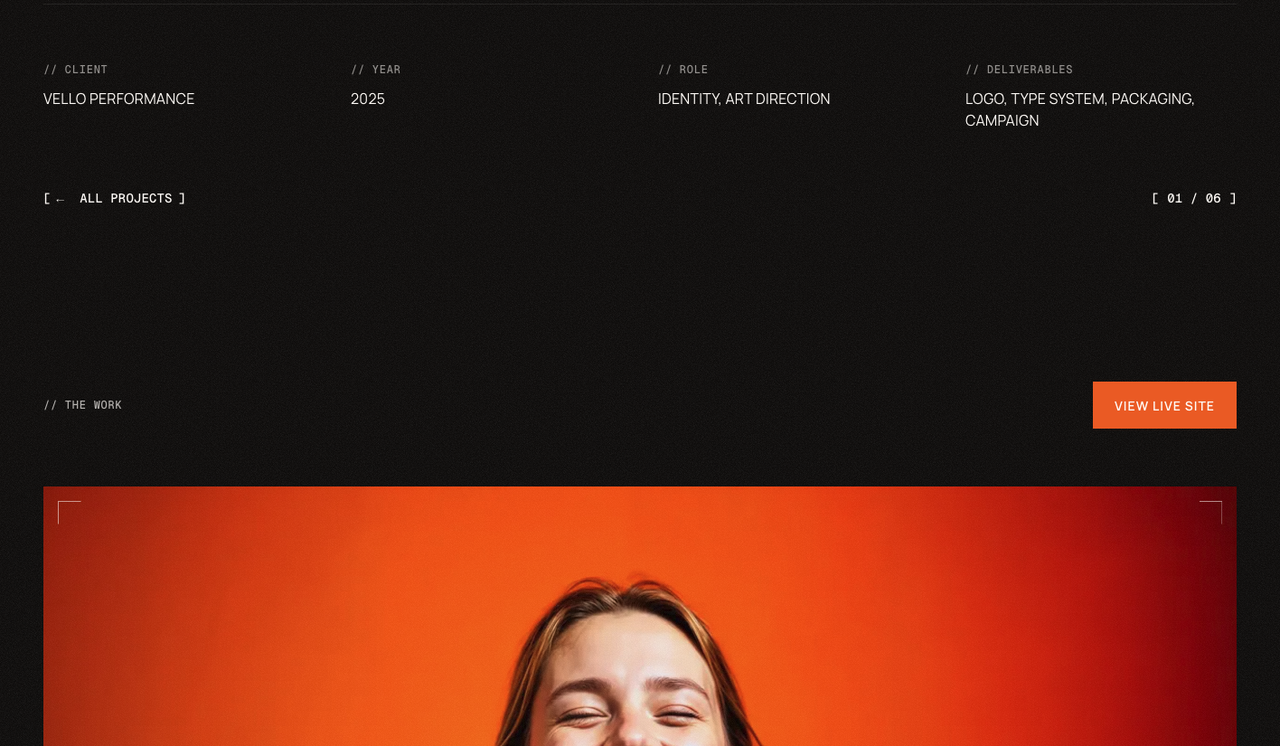
Prisma Astro live preview. The project shown is demo content.
Prisma for Next.js
The same page structure gives you a filterable Projects index, Markdown project details, About, Journal and Contact with a form and FAQ. The product page documents pre-rendering at build time and image handling with the Next.js image component. If your portfolio doubles as a React work sample, you can build a custom demo as part of the site. That takes development time, and the supplied images are placeholders. Before choosing this edition, decide whether you want to maintain a Next.js app for the site after launch. Open the Next.js preview
Starting in Figma
Oryven for Figma has project index and detail layouts, responsive frames, shared type and colour styles, and motion notes. Use it if you want to lay out your own content and decide how a project reads on desktop and mobile before building. It's a studio design, so bring the copy and navigation down to one person's scope. You'll still need to implement and publish the site.
Portfolio website FAQ
How many projects should I put in my portfolio?
Start with two or three projects that let you explain your role in detail. Put the one closest to the work you want first. Add another when it shows a skill or kind of work the rest leave out.
Can I use a portfolio template if I can't show client work?
Yes. Lead with a personal project, an open-source contribution or a client case study you've been given permission to share. Describe what you actually did. If a project is self-initiated, label it that way. Use a short, approved summary for private work only if the terms allow it.
Does a portfolio need a blog?
A blog is optional. If writing helps show how you work, publish something you would send to a prospective client or interviewer, such as a design decision or a technical walkthrough. If it would sit empty, launch with Home, Work, About and Contact and leave Journal out of the navigation.
Is Framer, Astro or Next.js better for a portfolio?
Choose Framer for visual editing and CMS updates, Astro for Markdown and a static deployment, or Next.js if the React code is part of what you want to demonstrate or extend. Preview the deepest project page before choosing. That's where your longest story and largest images have to fit.
If you only need one portfolio, pick the edition you'll use. If you also build client sites or work across platforms, the Pixels71 All-Access Pass covers the template library, including future releases, for a regular price of $99 once.